
Duo Authentication for Epic Hyperdrive with Duo Universal Prompt - Beta
Last updated:
Action required by February 2, 2026 - Duo CA bundle expiration
Duo’s existing certificate authority (CA) pinning bundle will expire in 2026. Duo products that use certificate pinning require a software update for continued use after February 2, 2026.
Upgrade any existing Duo Authentication for Epic Hyperdrive with Universal Prompt Beta version 1.9.9 installations to version 1.9.10.
Please visit Duo Knowledge Base article 9451 for more information and guidance.
Overview
Duo Authentication for Epic Hyperdrive is a client-side .NET component that provides two-factor authentication for the Epic Hyperdrive e-Prescription process. Install the Duo application on all Epic workstations to provide complete protection. If you're delivering the Epic client via application virtualization (like Citrix XenApp or Microsoft Remote Desktop Services), you should install Duo Authentication for Epic at the application host — not the end-user workstation.
Duo Authentication for Epic is a "Direct" authentication device capable of "User" authentication only. If configured as a "Passive authentication device", or to authenticate "Patient" logons, the Duo device will report an error message and return a failure to Epic.
Duo Authentication for Epic Hyperdrive with Universal Prompt improves the user authentication experience available in prior releases. Instead of showing a client-side constructed prompt (the "Duo Epic legacy prompt"), it launches the web-based Duo Universal Prompt in a pop-up Microsoft Edge webview.
This application communicates with Duo's service on SSL TCP port 443.
Firewall configurations that restrict outbound access to Duo's service with rules using destination IP addresses or IP address ranges aren't recommended, since these may change over time to maintain our service's high availability. If your organization requires IP-based rules, please review Duo Knowledge Base article 1337.
Effective June 30, 2023, Duo no longer supports TLS 1.0 or 1.1 connections or insecure TLS/SSL cipher suites. See Duo Knowledge Base article 7546 for additional guidance.
If Duo Authentication for Epic is unable to contact the Duo Security cloud service then Duo "fails closed" and reports the failure to Epic. The defined Epic application workflow determines the next action.
Enrollment
The Duo Universal Prompt offers inline self-enrollment. Today, Duo is not a qualified credential service provider (CSP) or certificate authority (CA) for EPCS identity verification purposes.
If your compliance team recommends restricting self-registration of users in Duo during the e-prescription workflow, you should apply a policy to your Duo Epic application with the new user policy set to Deny access to prevent enrollment.
If you prevent inline self-enrollment in the Universal Prompt then you'll need to enroll your users in Duo ahead of time using directory synchronization, CSV import, or another method. Read the enrollment documentation to learn more about these options.
Authentication Methods
Duo Authentication for Epic with Duo Universal Prompt expands the supported Duo authentication methods available for use beyond those available in the Duo Epic legacy prompt. Some of the newer authentication methods, while considered more secure methods by Duo, have not yet been audited for FIPS compliance. One-time passcodes (OTP) and Duo Push methods are validated to meet FIPS 140-2 Level 1 per the table below.
To achieve EPCS compliance, choose between the available Duo authentication methods that meet your compliance team’s interpretation of the Federal EPCS Guidelines.
| Authentication Method | Meets EPCS compliance for FIPS 140-2 Level 1? |
|---|---|
| Roaming authenticators (FIDO2 Security Keys)1 | Verify compliance with your FIDO2 security key vendor |
| Platform authenticators (Touch ID, Windows Hello, etc.)1 | Not yet assessed by Duo |
| Duo Mobile Verified Push1 | Yes |
| Duo Mobile Push | Yes |
| Duo Desktop authentication1 | Not yet assessed by Duo |
| Duo Mobile passcode | Yes on iOS and Android |
| SMS passcode | No - Disable SMS use in your effective authentication methods policy. |
| Phone callback | No - Disable phone callback use in your effective authentication methods policy. |
| Hardware tokens | Verify compliance with your token vendor |
| Bypass code | No - Do not issue bypass codes to EPCS users. Disable bypass code use in your effective authentication methods policy. Consider preventing your Help Desk admins from creating bypass codes for users. |
1 Available only with Duo Universal Prompt.
Prerequisites
-
Check your Windows version before starting. This application supports Windows 10 and later client operating systems, and Windows 2016 and later server operating systems.
-
Duo Authentication for Epic Hyperdrive requires .NET Framework 4.7.1, PowerShell, and Windows Installer 4.0 or later.
- Ensure that .NET and PowerShell on the client Windows system defaults to TLS 1.2. The Duo installer will fail if PowerShell does not default to TLS 1.2 communication. You can verify this by launching the system default PowerShell and running this command:
Invoke-WebRequest -Uri "https://api.duosecurity.com/auth/v2/ping"If you receive the error message
Invoke-WebRequest : The request was aborted: Could not create SSL/TLS secure channel.instead of aStatusCode: 200response, see instructions for configuring .NET to use TLS 1.2 in the registry in the Duo Knowledge Base. -
The Epic Hyperdrive client must be installed on the local system.
First Steps
Before moving on to the deployment steps, it's a good idea to familiarize yourself with Duo administration concepts and features like options for applications, available methods for enrolling Duo users, and Duo policy settings and how to apply them. See all Duo Administrator documentation.
Then:
- Sign up for a Duo account.
- Log in to the Duo Admin Panel and navigate to Applications → Application Catalog.
- Locate the entry for Epic EPCS with the "2FA" label in the catalog. Click the + Add button to create the application and get your integration key, secret key, and API hostname. You'll need this information to complete your setup. See Protecting Applications for more information about protecting applications with Duo and additional application options.
- No active Duo users can log in to new applications until you grant access. Update the User access setting to grant access to this application to users in selected Duo groups, or to all users. Learn more about user access to applications. If you do not change this setting now, be sure to update it so that your test user has access before you test your setup.
This setting only applies to users who exist in Duo with "Active" status. This does not affect application access for existing users with "Bypass" status, existing users for whom the effective Authentication Policy for the application specifies "Bypass 2FA" or "Skip MFA", or users who do not exist in Duo when the effective New User Policy for the application allows access to users unknown to Duo without MFA.
- Epic Hyperdrive customers should download the SAML public key from the details section of the application by clicking the Download Public Key button. Keep the downloaded PEM file; you will provide it to Epic later. If you do not see the download button please contact Duo Support.
- Download the Duo Authentication for Epic Hyperdrive with Universal Prompt beta installer package (checksums).
The security of your Duo application is tied to the security of your secret key (skey). Secure it as you would any sensitive credential. Don't share it with unauthorized individuals or email it to anyone under any circumstances!
Duo Universal Prompt
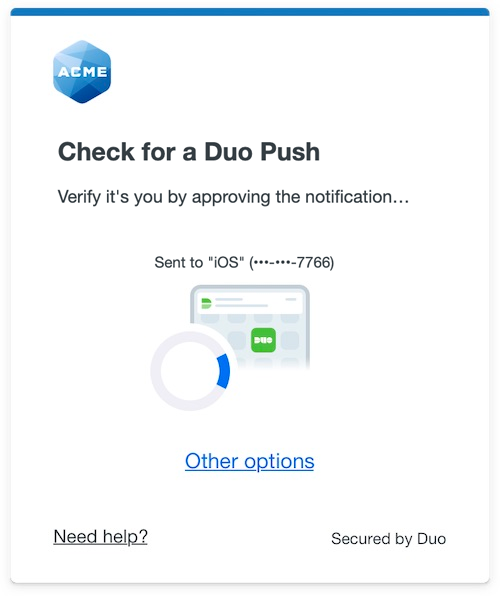
The Duo Universal Prompt provides a simplified and accessible Duo login experience for web-based applications, offering a visual interface with security and usability enhancements.
| Duo Epic with Universal Prompt | Duo Epic Legacy Prompt |
 |
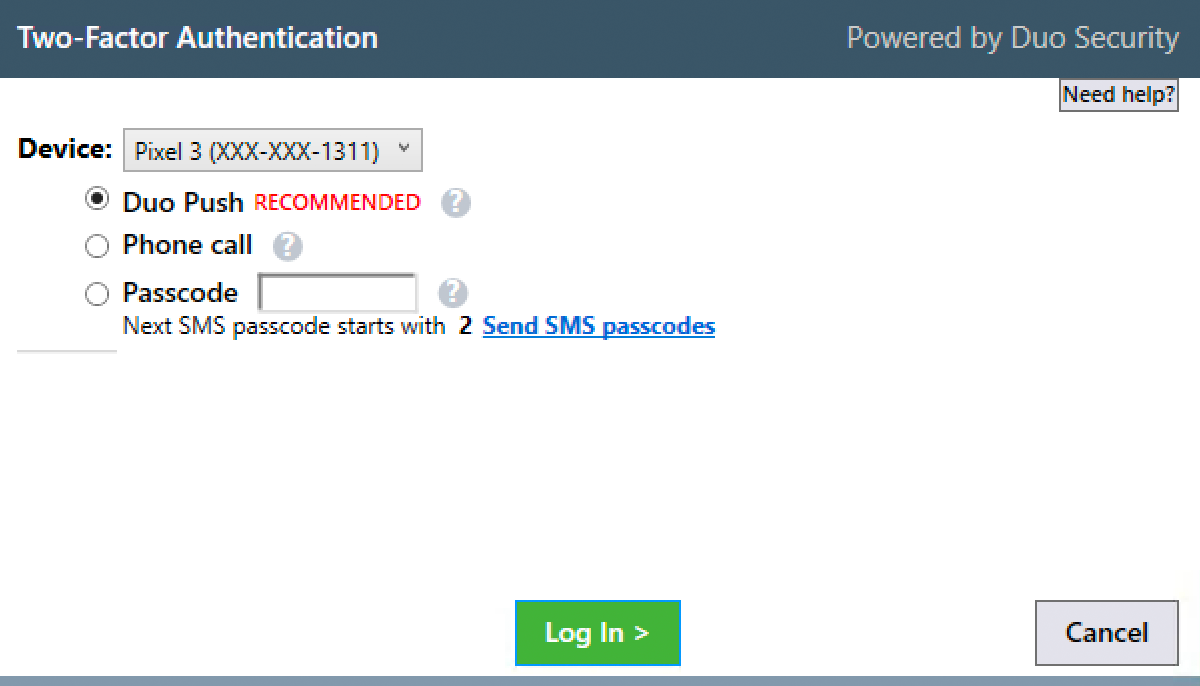 |
Read the Universal Prompt Update Guide for more information about the updated login experience for users.
During the Duo Authentication for Epic Hyperdrive beta period, the "Universal Prompt" section of an Epic EPCS application's details page shows the status as "Waiting on App Provider" with the activation options inaccessible. The status will change and unlock the activation control after you authenticate using the beta client.

Enable Universal Prompt for the Epic Application
Enabling the Duo Universal Prompt for testing with your Duo Epic Hyperdrive client application is a three-step process:
- Install the Duo Authentication for Epic Hyperdrive beta client application, which launches a Microsoft Edge webview during Duo authentication.
- Authenticate with Duo 2FA using the updated application so that Duo makes the Universal Prompt activation setting available in the Admin Panel. This first authentication after updating shows the traditional Duo prompt in the webview window.
- From the Duo Admin Panel, activate the Universal Prompt experience for users of that Duo Epic EPCS application if the traditional prompt is still selected. Once activated, all users of the Duo Authentication for Epic Hyperdrive beta client application see the Duo Universal Prompt in the webview window.
Users of Duo Authentication for Epic Hyperdrive 1.2.0 and earlier continue authenticating with the Duo Epic legacy prompt regardless of the Universal Prompt activation status for your Epic EPCS application.
Duo Policy and Status Recommendations
We recommend the following Duo policy settings to achieve compliance, minimize potential 2FA bypass, and prevent user self-enrollment without identity verification during Epic EPCS operations:
- Apply a New user policy set to Block access to the Epic EPCS application. This prevents new user enrollment in Duo during e-Prescription authorization.
- Do not apply an Authentication policy set to Skip MFA to the Epic EPCS application.
- Do not apply a User location policy set to Skip MFA and allow access with only a password to the Epic EPCS application. During the beta period this policy setting has no effect for Epic EPCS applications.
- Apply a Remembered devices policy set to Don't remember devices for browser-based applications to the Epic EPCS application.
- Do not apply an Authorized networks policy set to Skip MFA from these networks to the Epic EPCS application. During the beta period this policy setting has no effect for Epic EPCS applications.
- Apply an Authentication methods policy to the Epic EPCS application that allows only the methods approved by your compliance team.
Epic Hyperspace authentications using the Duo Universal Prompt are subject to Risk-Based Factor Selection, so unusual authentication patterns may result in restricted authentication methods requiring use of a Duo secure factor. Verified Duo Push meets EPCS compliance and is a secure factor per Duo Risk-Based Factor Selection, so we always recommend having it enabled. Authentications using the Duo Epic legacy prompt are not evaluated for risk.
Do not allow users to bypass Duo authentication for the EPCS application:
- Do not apply Bypass status to Duo users who will access the Epic EPCS application.
- Do not apply Bypass status to Duo groups containing users who will access the Epic EPCS application.
Deploy Duo Epic for Hyperdrive
Run the Epic Hyperdrive Installer
Run the Duo Authentication for Epic Hyperdrive beta installer with administrative privileges on the system(s) where the Epic Hyperdrive client is installed. Accept the license agreement and enter your integration key, secret key, and API hostname when prompted:
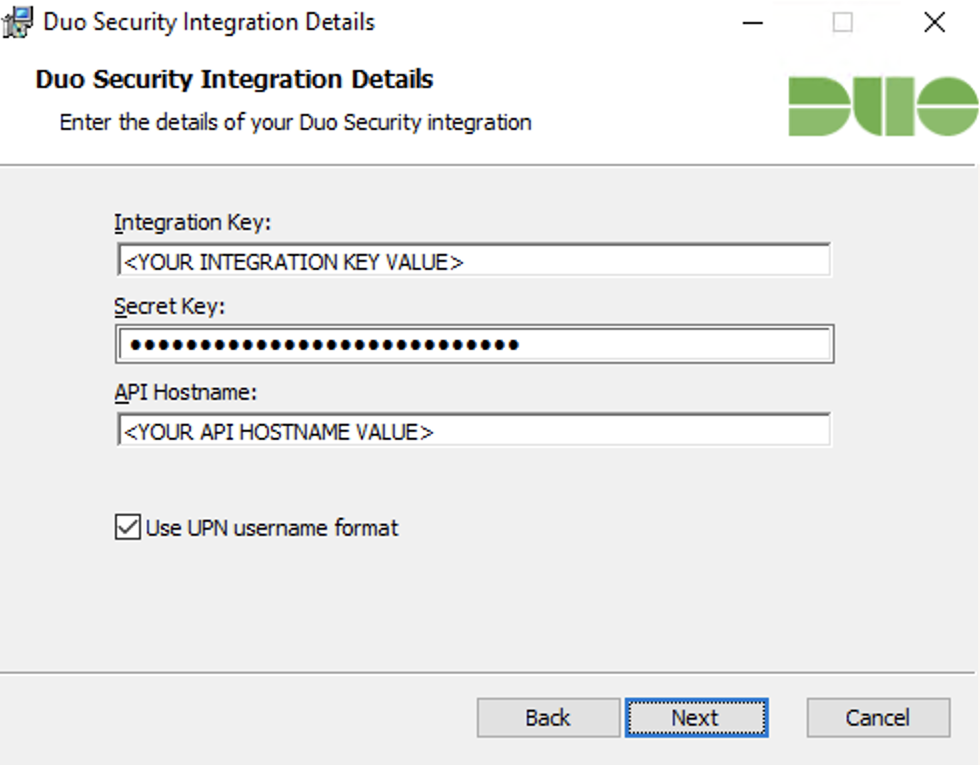
Duo sends the username as userPrincipalName. Uncheck the Use UPN username format box to send the username as sAMAccountName.
Configure Epic Hyperdrive to use Duo Authentication
To add Duo Authentication to Epic Hyperdrive, you will need to add the Duo application as an authentication device, and add that device as an authentication method to your desired context. The "ProgID" used when creating the Duo authentication device in Hyperdrive is Duo.EpicHyperdrive.AuthenticationDevice.
You will need to provide your public key and SAML Issuer to your Epic support. If you did not download this from the Duo Admin Panel when you created the Duo Epic application, return to the application's details page in the Duo Admin Panel and click the Download Public Key button to obtain the token as a PEM file for this application.
Your SAML Issuer is the Duo API Hostname followed by a colon (:) and your Duo integration key value. For example, if the API Hostname in your Duo Admin Panel is api-abcd1234.duosecurity.com and the Integration Key is DI1I65DCPTZFTN123ABC, your SAML Issuer is api-abdc1234.duosecurity.com:DI1I65DCPTZFTN123ABC. (Note that the ‘:’ colon is required.)
Provide the downloaded Duo public key PEM file to your Epic database administrator and the SAML Issuer information to your Epic Client Systems Administrator (ECSA) as part of your Duo deployment.
Please contact your Epic technical support representative for detailed instructions and more information about adding authentication devices.
Test Your Hyperdrive Setup
To test your setup, log into Epic Hyperdrive and perform a test e-Prescription workflow.
Authenticate Once in Traditional Duo Prompt to Unlock Universal Prompt Activation
The first time you authenticate, the traditional Duo Prompt appears in a webview window. Complete authentication in the traditional Duo prompt to unlock the Universal Prompt activation control. Then, return to your Epic EPCS application in the Duo Admin Panel to update the Universal Prompt setting.
- Scroll to the "Universal Prompt" section of the page and select the Show new Universal Prompt option.
- Scroll further down the page and click Save to apply the change.
Authenticate with Duo Universal Prompt
Once you activate the Universal Prompt for your Epic application in the Duo Admin Panel, the next time you authenticate the Duo Universal Prompt appears in a webview window after you enter your Epic username and password. If the username is not enrolled in Duo, and the effective new user policy permits enrollment for new users, then you can step through Universal Prompt enrollment in the Epic authentication window.
Reminder: verify whether to allow inline self-enrollment and which authentication methods to enable with your compliance team.
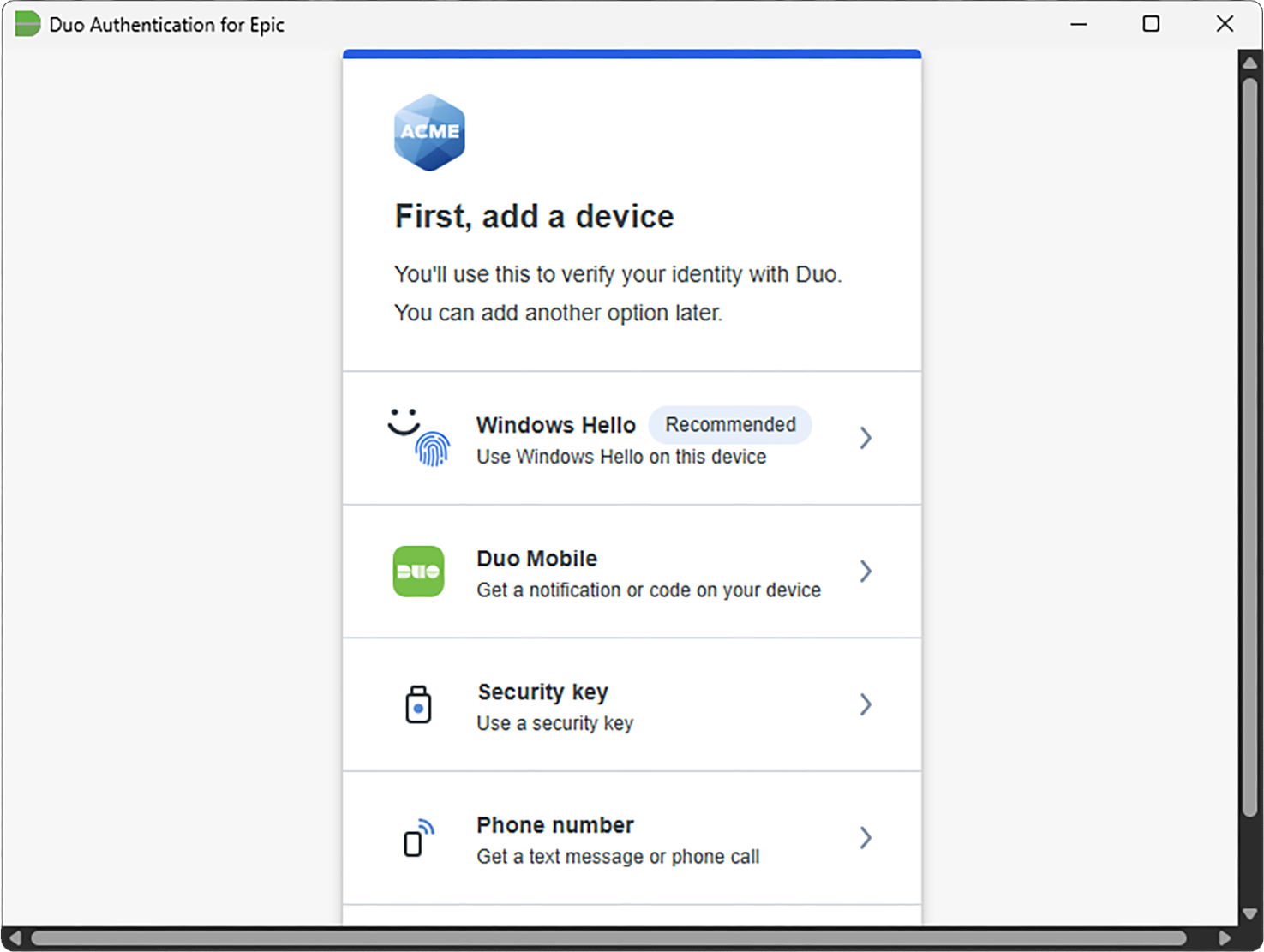
If you've already enrolled in Duo, then you can select from any available MFA authentication method. This example shows the options available with all authentication methods enabled in the effective policy. Authentication methods not permitted in your policy will not be available for users to choose when they authenticate.
Reminder: verify whether which authentication methods to enable with your compliance team.
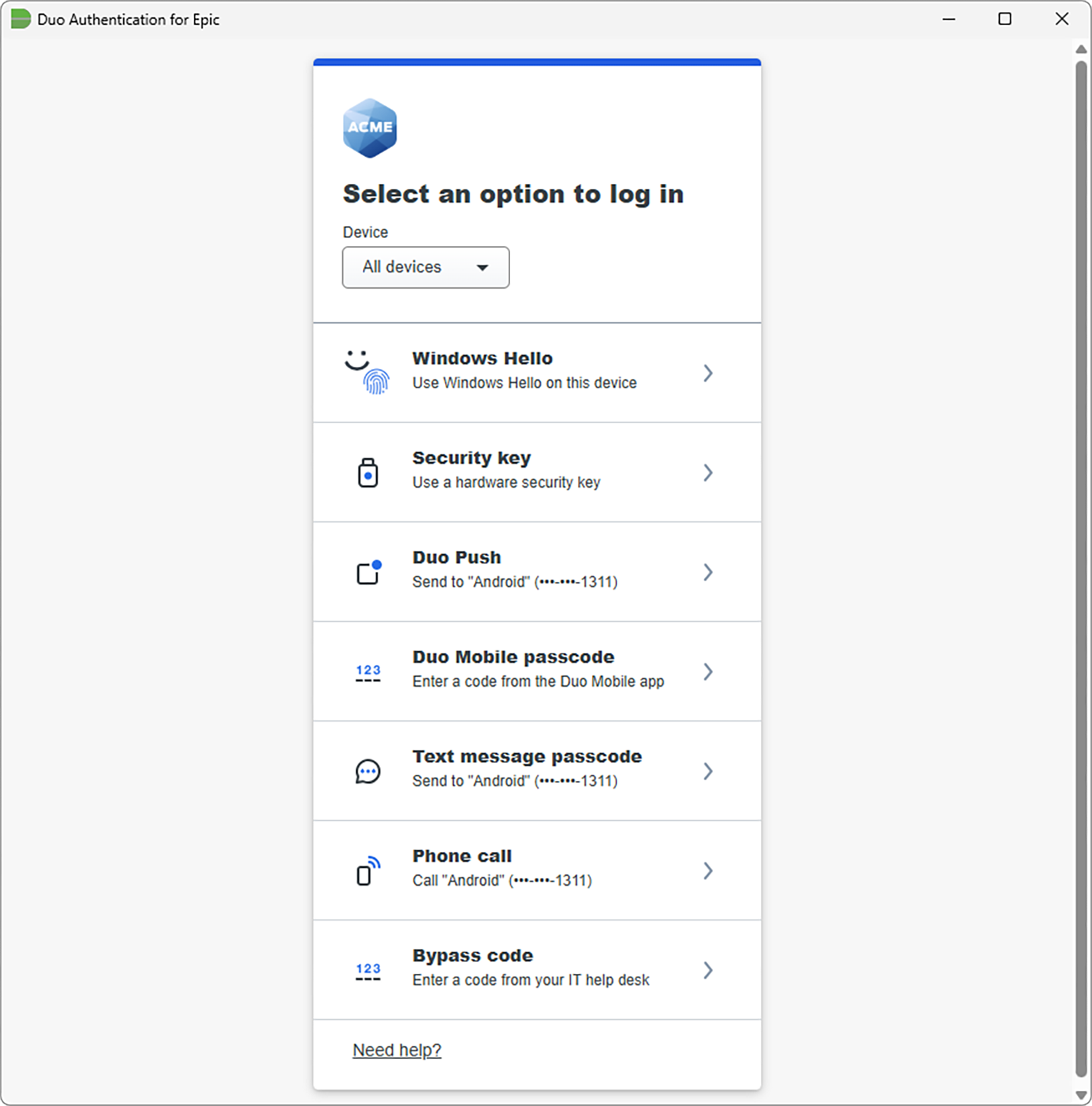
Verified Duo Push MFA in the Epic Hyperdrive Universal Prompt
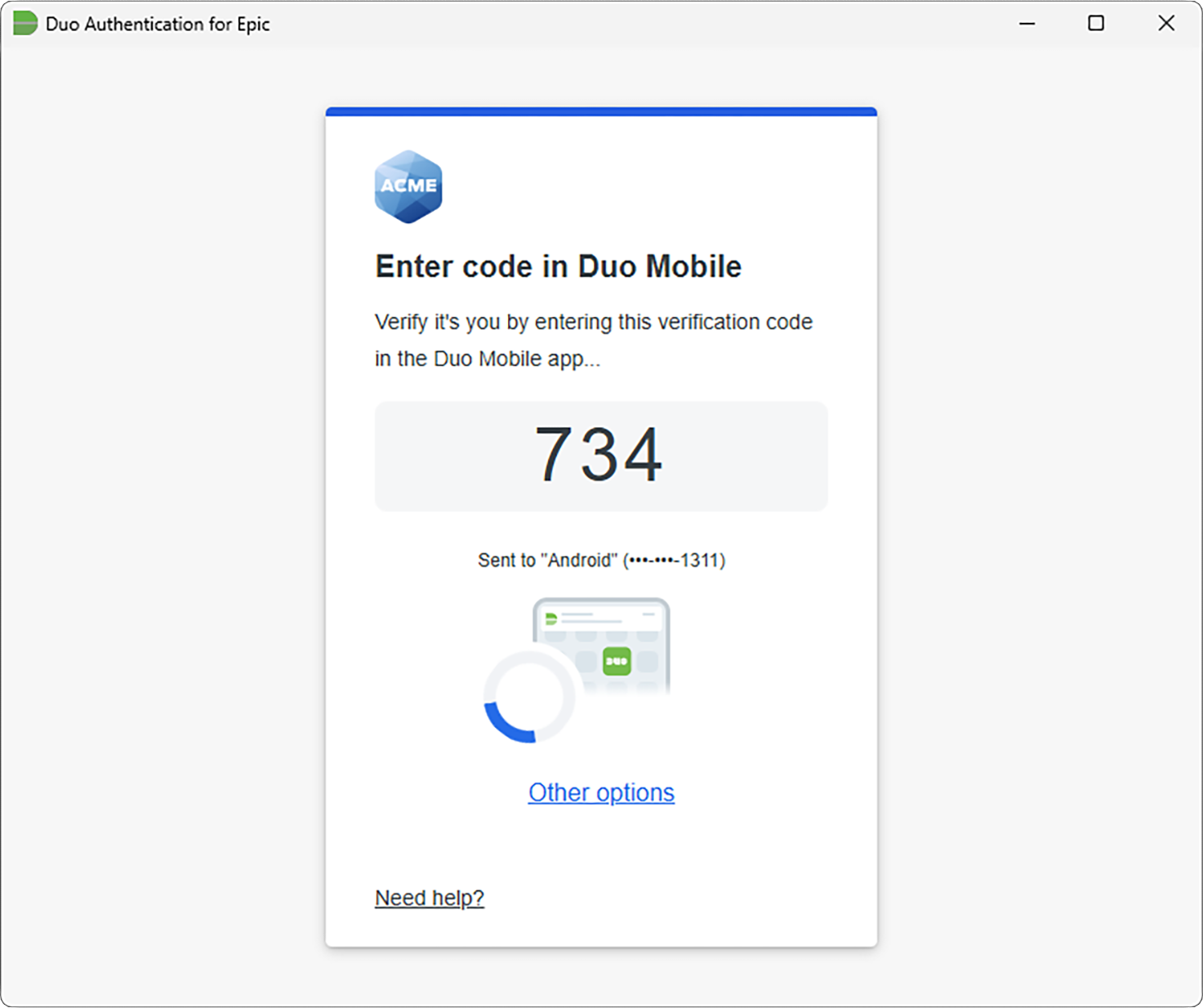
Windows Hello Passkey MFA in the Epic Hyperdrive Universal Prompt
Reminder: verify whether to allow platform and roaming authenticators in your authentication methods policy with your compliance team.
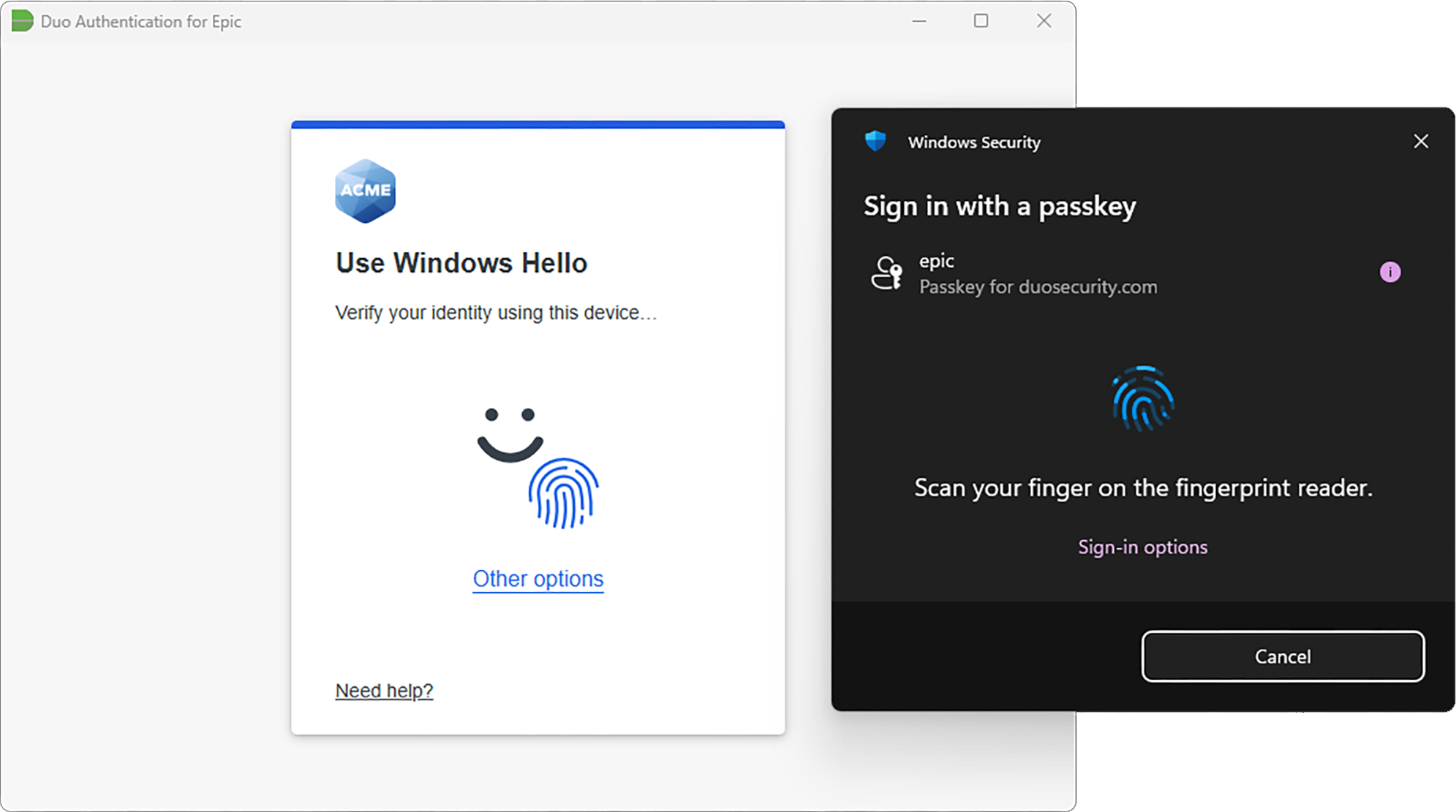
Upon approval of the Duo authentication request on your selected device, the Duo client passes the approval to Epic Hyperdrive as a SAML response and the e-Prescription workflow resumes.
Cancelling either the Epic or Duo authentication prompts returns you to the signing step of the e-Prescription workflow.
Prevent Universal Prompt Use
If you deploy the Duo Authentication for Epic Hyperdrive beta with Universal Prompt but decide that you do not want specific clients using the web-based Duo prompt in the Edge webview, you can disable the webview experience in the client's registry. This restores use of the non-web Duo Epic legacy prompt.
- Close and exit the Epic client.
- As an administrator, launch the Registry Editor (regedit.exe).
- Locate the Duo Epic registry values at
HKEY_LOCAL_MACHINE\SOFTWARE\Policies\Duo Security\Duo Epic HyperdriveorHKEY_LOCAL_MACHINE\SOFTWARE\WOW6432\Policies\Duo Security\Duo Epic Hyperdrivedepending on the product you installed and the platform of the client computer. - Create a new DWORD value in the
Duo Epic Hyperdrivekey namedEpicUseNativeGuiand set to1. - Reopen the Epic client and attempt Duo authentication on that client. You should see the legacy client-side Duo Prompt as seen in Duo for Epic Hyperdrive release 1.2.0.
Duo Secret Rotation
If you need to reset the client secret for Duo for Epic Hyperdrive after installation try the Duo Secret Rotation tool.
Advanced Hyperdrive Client Configuration With Group Policy
Configure additional client-side configuration options for Duo via Active Directory Group Policy. To create and apply the Duo Authentication for Epic Hyperdrive Group Policy Object (GPO):
-
Download the Duo Authentication for Epic Hyperdrive with Universal Prompt beta Group Policy template files and documentation. View checksums for Duo downloads here.
-
Extract the contents of the zip file and copy the files into your domain's Administrative Templates store.
\\your.domain.local\sysvol\your.domain.local\Policies\PolicyDefinitions\DuoEpicHyperdrive.admx \\your.domain.local\sysvol\your.domain.local\Policies\PolicyDefinitions\en-us\DuoEpicHyperdrive.adml -
On your domain controller or another system with the Windows Remote Server Administration Tools installed, launch the Group Policy Management console (GPMC).
-
Expand your forest and navigate down the tree to Group Policy Objects. Right-click the Group Policy Objects folder and click New. Enter a name for the new GPO (such as "Duo Epic Client") and click OK.
-
Right-click the new GPO created in step 4 and click Edit. Navigate to Computer Configuration\Policies\Administrative Templates and expand Duo Authentication for Epic Hyperdrive.
-
Double-click a setting to configure it. When you've finished configuring settings, close the policy editor.
Be aware that GPOs with Duo for Epic configuration information will contain the unencrypted SKEY and push that unencrypted info to targeted clients on GPO refresh. Avoid configuring Duo for Epic Hyperdrive via GPO if you wish to maintain the SKEY as secured information.Beta note: Some settings in the GPO template apply to the legacy prompt (native GUI) authentication experience only, and have no effect on the Universal Prompt login experience. The descriptions for these settings include "DEPRECATED" when you view them in the group policy editor.
-
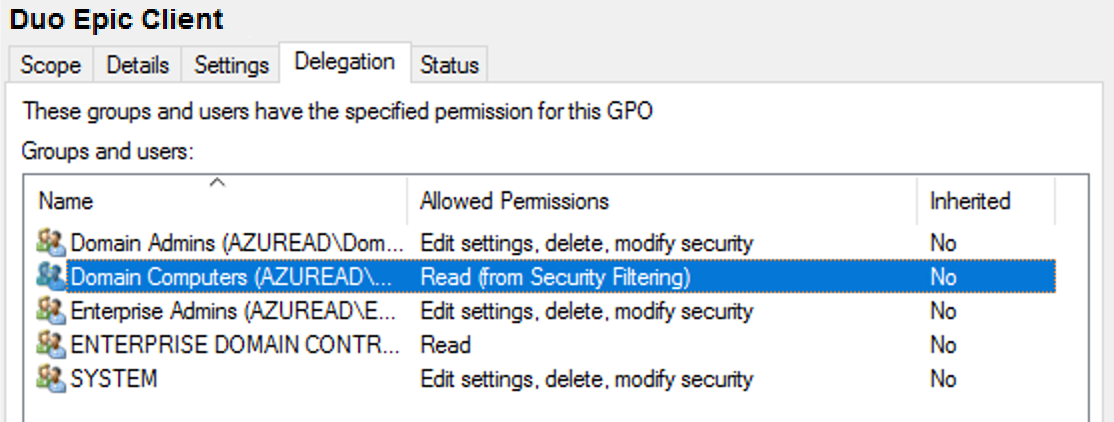
Once returned to the Group Policy Management window, click on the Delegation tab for your new Duo Epic GPO and then click the Advanced button. Click on the Authenticated Users group in the list and then click Remove.
Then, click Add... and type in Domain Computers, and then click OK. Check the permissions boxes in the "Allow" column to grant the "Domain Computers" group both Read and Apply group policy permissions. Click OK to apply the new delegated permissions. Verify that "Authenticated Users" no longer appears in the list. Consider preventing read of the GPO by any unprivileged user accounts to prevent exposure of the Duo secret key.
-
Apply the new GPO for Epic to domain member workstations by linking the policy to the desired OU or container.
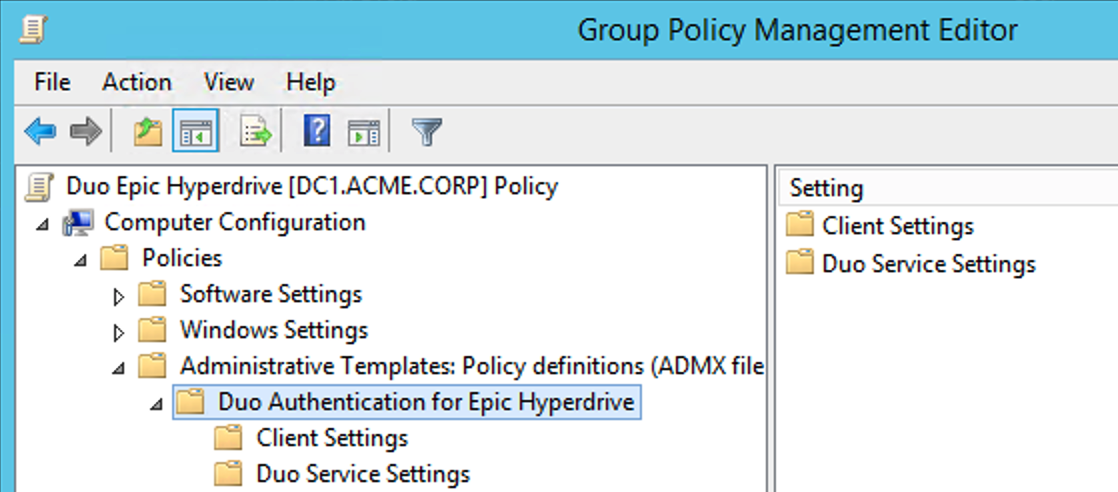
For additional information about using GPOs and administrative templates, please see Microsoft's Group Policy documentation collection.
Please contact Duo Support if you need to configure the Duo Authentication for Epic client settings without using Group Policy.
Deploying Duo Authentication for Epic to Clients using Active Directory
Duo Authentication for Epic may be deployed via a Group Policy software installation package, with or without accompanying client-side Duo settings specified in the same GPO.
-
Download the latest Duo Authentication for Epic Hyperdrive 1.9.10 beta installer file. View checksums for Duo downloads here.
-
Copy the DuoEpicHyperdriveBeta-1.9.10.msi file to your centralized software deployment share. Your software share and the Duo MSI file should be readable by "Domain Computers", as Duo for Epic Hyperdrive gets installed during the pre-logon group policy processing phase of the boot process and not under the context of any named user.
Consider modifying the access permissions of the file share location where you copy the Duo Epic MSI and MST files to prevent read by user accounts to prevent exposure of the Duo secret key.
-
Create a transform for the installer file by using a table editor tool like Orca (distributed as part of the Windows SDK) to deploy the Duo Epic Hyperdrive client with initial configuration.
-
If you are using Orca, open the Duo Epic Hyperdrive MSI file in the editor, and go to Transform → New Transform.
-
Click on the Property table, and add these new rows using your Duo Epic application's information from the Duo Admin Panel:
Property Value DUO_IKEY Your Duo integration key DUO_SKEY Your Duo secret key DUO_HOST Your Duo API hostname 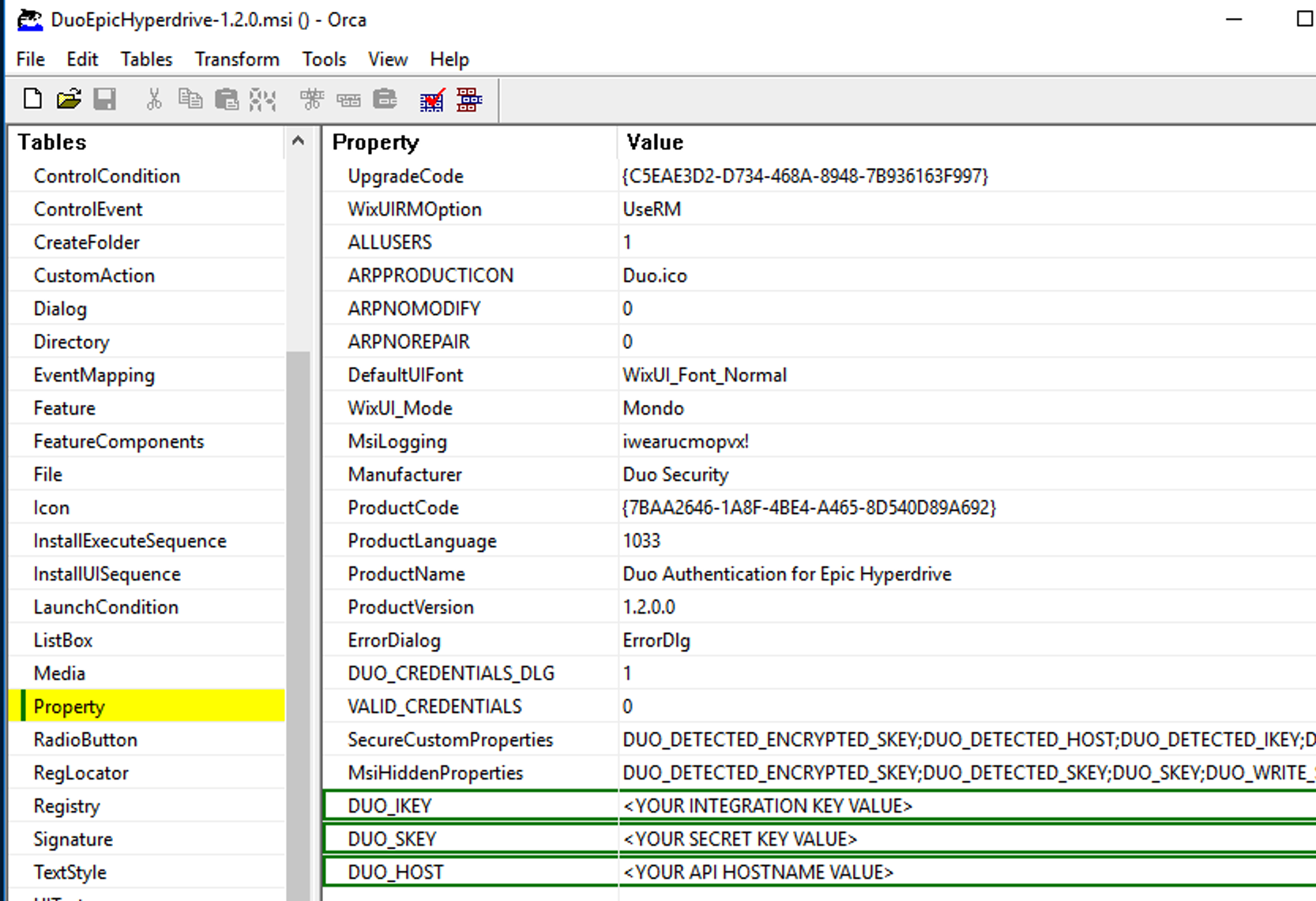
-
Go to Transform → Generate Transform... to create the MST file with your changes.
-
Close Orca after generating the transform MST file, and do not save any changes to the MSI file itself.
-
Copy the new transform file to your central application deployment share alongside the Duo Epic Hyperdrive MSI installer. The share with the MST file should not be readable by unprivileged user accounts to prevent exposure of the Duo secret key.
-
-
In the Group Policy Management console, create a new GPO for Duo Authentication for Epic Hyperdrive publishing. Navigate to Computer Configuration\Policies\Software Settings\Software installation then right-click and select New > Package. This pops up a file browser window.
-
Use the file browser to navigate to the software deployment share where you put the Duo MSI installer and the MST transform file. Select the network accessible DuoEpicHyperdriveBeta-1.9.10.msi installer package from your software deployment share and choose Advanced as the deployment method.
-
Go to the Modifications tab in the properties window. Click the Add button and select the MST transform you created earlier in step 3.
-
Click OK to finish, and the Duo Authentication for Epic Hyperdrive software package is created. When you've finished, close the policy editor.
-
Apply the new software publishing GPO for Epic Hyperdrive to domain member workstations by linking the policy to the desired OU. The target client workstations need a reboot to apply the new GPO settings and install Duo.
Here's a sample software publishing policy for Duo Authentication for Epic Hyperdrive v1.0, showing use of a transform file (duo-epic.mst).
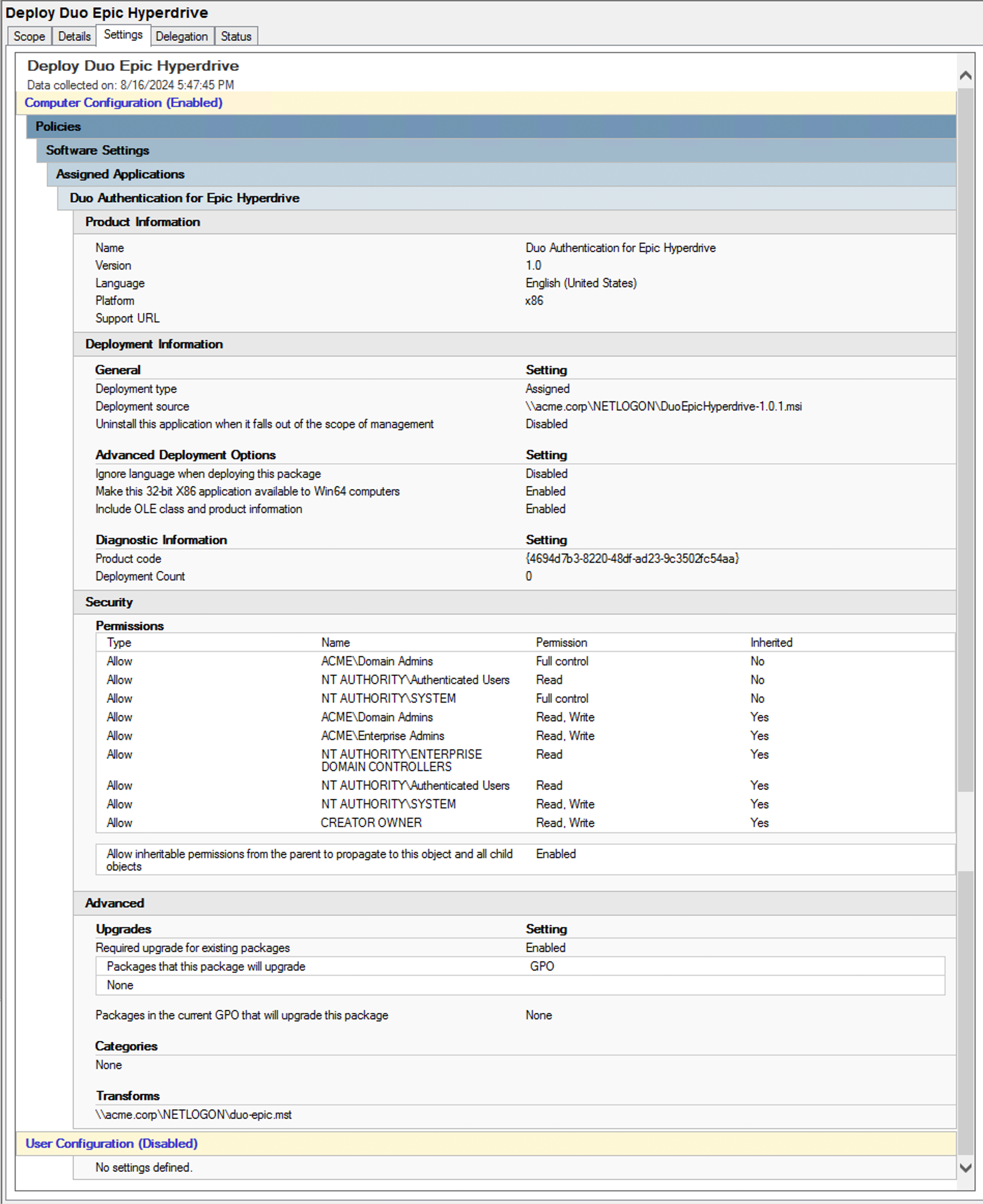
Learn more about installing software using Group Policy at Microsoft Support.
Network Diagram
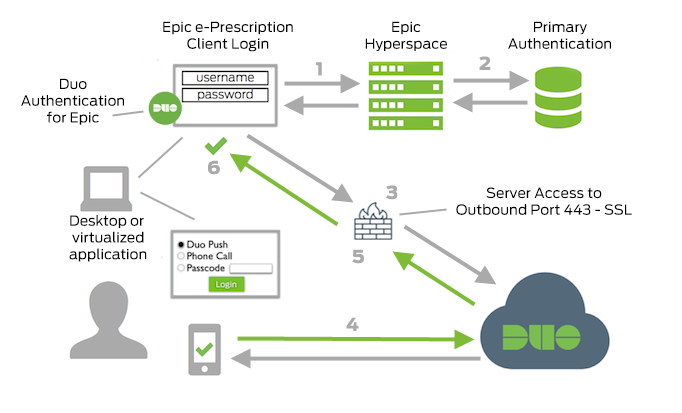
- Begin Epic Hyperdrive e-Prescription workflow.
- Primary authentication.
- Duo Authentication for Epic connection established to Duo Security over TCP port 443.
- Secondary authentication via Duo Security’s service.
- Duo Authentication for Epic receives authentication response.
- Epic Hyperdrive e-Prescription workflow continues.
Grant Access to Users
If you did not already grant user access to the Duo users you want to use this application be sure to do that before inviting or requiring them to log in with Duo.
Troubleshooting
Need some help? Take a look at the Epic Frequently Asked Questions (FAQ) page or try searching our Epic Knowledge Base articles or Community discussions. For further assistance, contact Support.